
We are pleased to announce that technology will be available in the Event Centre at the King and His Kingdom 2025 conference to support individuals with hearing impairment. The system provided will require individuals to use their own cell phone (Apple iPhone or Android). This involves installing an app from your device’s app store (no cost) before arriving at the event. Users will also be required to supply their own personal wired headphones to use as a personal listening device. *Use of Bluetooth headphones or earbuds is strongly discouraged, as most Bluetooth hardware adds significant delay to the sound transmission, which reduces clarity for the listener.
Please follow the steps below to ensure you can take advantage of this service during your time at the conference:
Before Arriving at the Conference
- Navigate to your phone’s app store and search for and install the WaveCAST app produced by Williams Sound LLC.
Logo should appear as:

Apple App Store: https://apps.apple.com/us/app/wavecast-audio-receiver/id1458383632
Google Play App Store: https://play.google.com/store/apps/details?id=com.williamsav.wavecast_receiver&hl=en_CA
2. Open the app to verify it is installed successfully. Once opened, it should appear as shown below (appearance may vary on phone operating system):
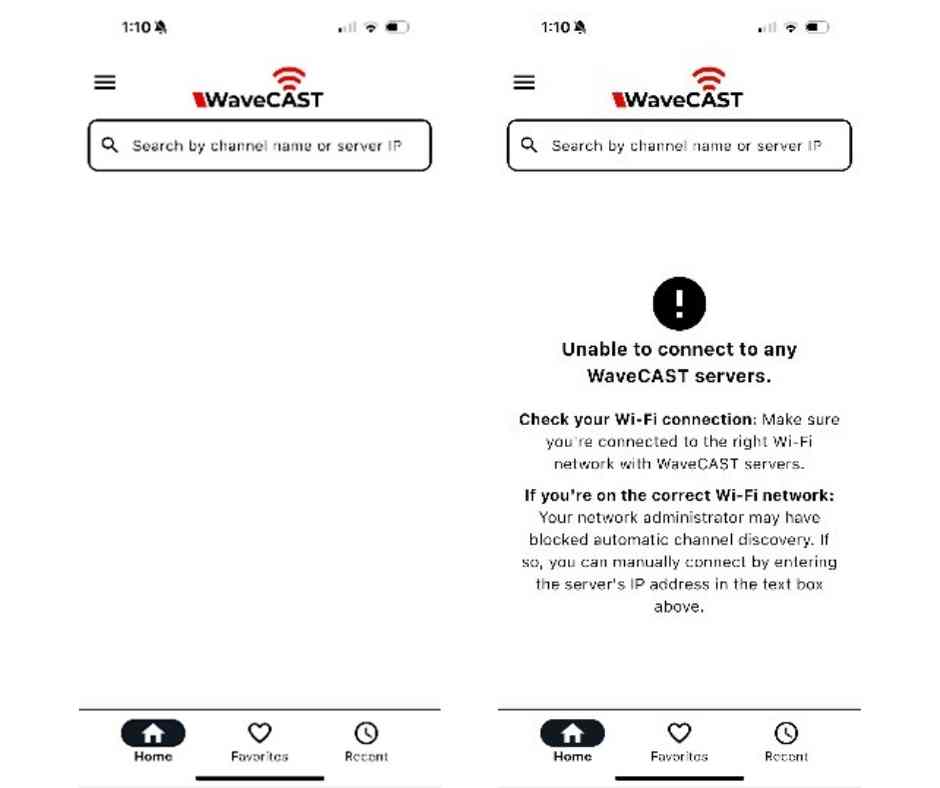
3. Secure a set of wired headphones, connect to your phone, and test their operation by playing a sound file on your music or Streaming service.
Upon Arrival at the Conference
- Make your way to the AV tech booth at the rear of the Event Centre (floor level).
- Using your phone’s camera, scan the QR code provided to connect to the system WiFi access point, and follow the prompts on your phone to complete connecting to the WiFi system.
- Confirm that your phone has connected successfully to the correct WiFi system by navigating to your phone’s WiFi settings and look for the Network name shown next to the QR code noted above.
- NOTE: This network does not provide access to the internet.
- Connect your wired headphones to the headphones output on your phone.
- Open the WaveCAST app.
- When the App is opened for the first time, a list of available channels will appear. Tap on the channel to listen to the audio.
*The channel name will be provided next to the QR code you scanned at the AV tech booth.
Once an audio channel has been selected, the audio should start playing automatically. The volume of the audio can be adjusted using the slider in the middle of the screen, or with the physical volume controls on the personal device
To mute the audio, tap the speaker icon. Tap it again to unmute the audio. The icon should look like this:

*Note on Wi-Fi Assist/Smart Network Switching*
WaveCAST does not require an internet connection. It is being used on a network with no internet access.
Some phones expect network connections to provide internet access. When the phone cannot reach the internet, it may automatically try to switch to a network connection with an internet connection. Sometimes, the phone determines that the best internet connection is through a mobile data network.
This is not the desired behavior when using WaveCAST. The phone may automatically take the user off the WaveCAST network, and onto an unrelated internet network connection. This will prevent the user from hearing the audio, and they may not realize their phone switched networks on them.
Steps for disabling this feature will differ for every phone, but is typically found under the Wi-Fi or Mobile network settings. Look in the manual for your phone for instructions on disabling this feature.
Putting the phone in “Airplane Mode” may also aid in reducing this issue.
*Please bring your own headphones. A very limited number of basic wired headphones will be available on a first come first serve basis for those who are unable to secure their own set. Please visit the AV tech booth to inquire if any headphones are available.